
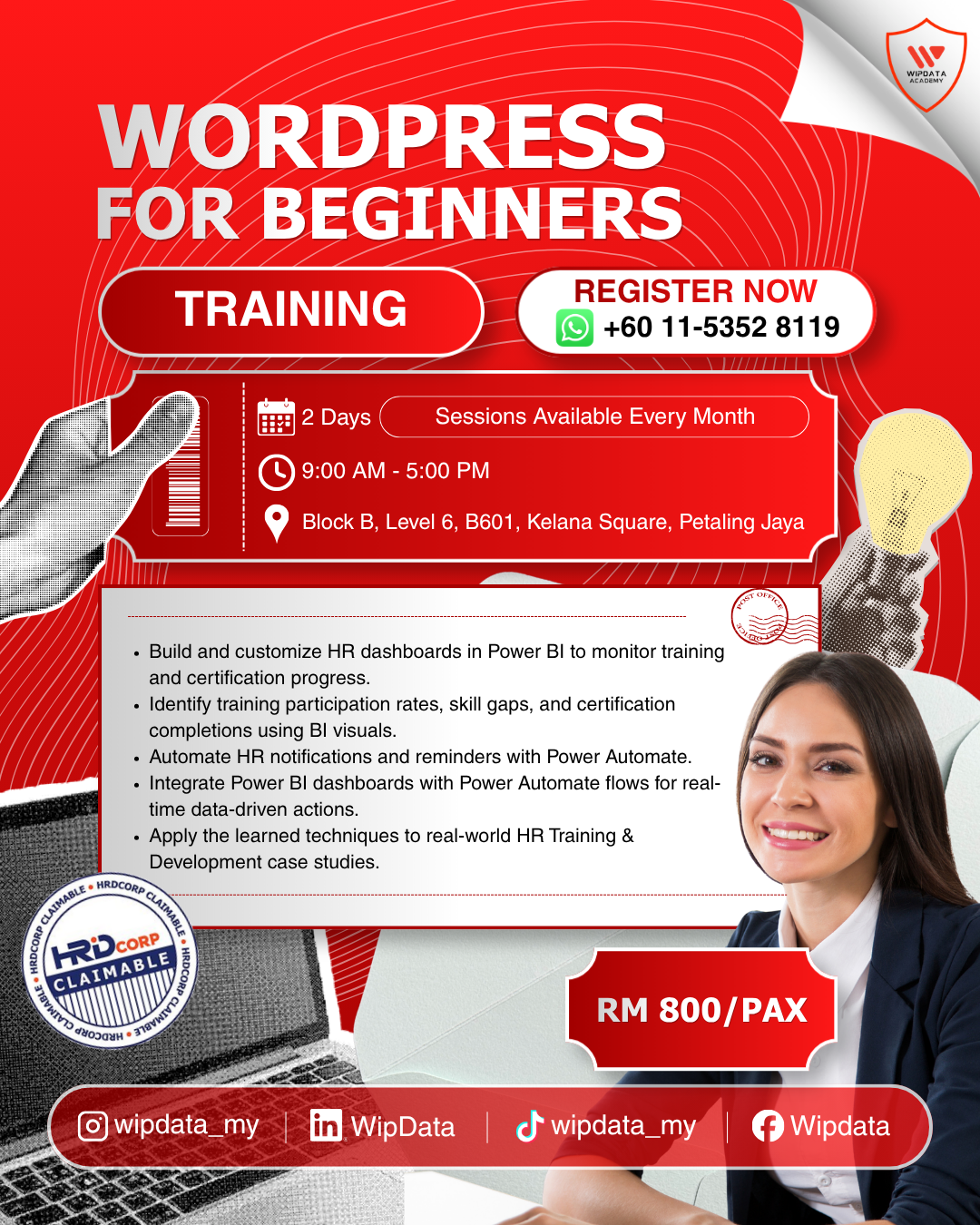
WordPress for Beginners
RM800.00
Description
Course Duration: 2 days
Course Overview:
WordPress powers over 43% of all websites on the internet today, making it the world's most widely used Content Management System. From personal blogs to large corporate websites, e-commerce stores, and online booking platforms, WordPress provides the flexibility, scalability, and ease of use that makes professional website building accessible to anyone, regardless of technical background. For business owners, marketers, HR professionals, and working individuals who want full control over their online presence, learning the self-hosted version of WordPress is one of the most practical and high-return digital skills available today.
This two-day, hands-on WordPress training course is designed for complete beginners who want to build a fully functional, professional website from the ground up. Participants will work through nine practical modules covering the full WordPress workflow: from installing a local development environment and setting up WordPress for the first time, to creating content, managing users, working with media, planning and building a business website, customising themes, extending functionality with essential plugins including Contact Form 7, Booking Calendar, Tiled Galleries, and Social Sharing, and finally migrating the completed website to a live hosting environment with proper backup and security measures in place.
By the end of this programme, participants will leave with a working, customised, plugin-enhanced WordPress website that is ready for the real world. Whether they are building a business website, a portfolio, a blog, or a booking platform, every module is built around practical, immediately applicable skills. Participants will not just understand WordPress theoretically; they will have built something real, secure, and live.
Audience:
Business owners, entrepreneurs, bloggers, marketing executives, HR and communications professionals, and working individuals who want to build and manage their own professional website using WordPress. No prior web development, coding, or design experience is required.
Prerequisites:
Basic computer literacy and comfort using a web browser. Participants must bring a laptop with administrative rights to install software. WAMP will be installed during Module 2. A stable internet connection is required throughout the programme.
Methodology:
The programme will maximise understanding and learning through Interactive Demonstrations, Hands-on Guided Exercises, Live Demos, Step-by-step Walkthroughs, and Q&A and Discussion for real-world applications.
Objective:
- Set up and configure a self-hosted WordPress website from scratch, including local environment setup, WordPress installation, and core dashboard configuration.
- Create and manage website content including posts, pages, categories, and media such as images, galleries, audio, and video, using the WordPress Block Editor.
- Plan, design, and customise a professional business website using WordPress themes, the Customizer, and custom navigation menus.
- Extend website functionality by installing and configuring essential plugins including Contact Form 7, Booking Calendar, Tiled Galleries, and Social Sharing, and migrate the completed website to a live hosting environment with backup and security measures in place.
Course Module:
Module 1: Introduction to WordPress CMS
- Welcome and programme overview
- What is a Content Management System (CMS) and why use one?
- Introduction to WordPress: history, ecosystem, and global reach
- com vs. WordPress.org: key differences, pros, and cons
- Why self-hosted WordPress (WordPress.org) is the preferred choice for businesses
- Overview of the WordPress ecosystem: themes, plugins, and the community
Module 2: Installing WordPress
- Setting up a local development environment using XAMPP or WAMP
- Creating a local database for WordPress
- Step-by-step WordPress installation on a local server
- Completing the famous 5-minute WordPress setup wizard
- Introduction to the WordPress Admin Dashboard: navigation and layout
- Introduction to the WordPress Toolbar: quick access features and admin links
- Configuring essential General Settings: site title, tagline, and timezone
Module 3: WordPress Posts and Pages
- The difference between Posts and Pages in WordPress
- Creating a new Post using the Block Editor (Gutenberg)
- Adding headings, paragraphs, images, and blocks to a post
- Introduction to Categories and Tags: organising content effectively
- Scheduling Posts: publishing content at a future date and time
- Saving drafts, previewing, and deleting posts and excerpts
- Creating a Page using the Page Editor
- Applying Page Templates for different layout needs
- Introduction to Page Hierarchies: parent and child pages
Module 4: WordPress User Profiles
- Introduction to WordPress user management
- Understanding the 5 WordPress user roles: Administrator, Editor, Author, Contributor, Subscriber
- Comparing role permissions and access levels
- Adding new users to the WordPress site
- Editing and updating user profiles: display name, bio, contact info
- Managing multiple users: deleting, reassigning content, and role changes
Module 5: Media and Images
- Introduction to the WordPress Media Library
- Uploading images and inserting them into posts and pages
- Image settings: alt text, captions, alignment, and linking
- Creating image galleries using the WordPress Gallery block
- Introduction to Featured Images and how they appear across the site
- Introduction to audio and video in WordPress: upload vs. embed
- Adding self-hosted videos into WordPress pages and posts
- Embedding YouTube and Vimeo videos using the Embed block or URL
Module 6: Prepare to Build a Business Website
- Why planning before building saves hours of rework
- Defining the goals and requirements of the website
- Creating a basic content inventory: pages, sections, and content blocks needed
- Identifying key business information: contact details, services, about, and calls to action
- Adding key information to the WordPress site: homepage, about, services, and contact pages
- Creating Custom Menus in WordPress: primary navigation and footer menus
- Assigning menus to theme menu locations
Module 7: Introduction to WordPress Themes
- What is a WordPress theme and how it controls site appearance
- Free vs. premium themes: what to look for when choosing a theme
- Browsing the WordPress.org Theme Directory
- Installing and activating a theme from the Dashboard
- Configuring theme settings: header, footer, layout, and typography options
- Customizing the theme using the WordPress Customizer: colours, fonts, logo, and background
- Customizing navigation menus within the theme
- Introduction to the Site Editor (Full Site Editing) for block-based themes
Module 8: Extend the Website Functionality Using Plugins
- What are WordPress plugins and how do they work?
- Introduction to the WordPress Plugin Directory: searching, reviewing, and selecting plugins
- How to evaluate a plugin: ratings, last updated date, active installs, and support
- Installing and configuring Contact Form 7: create and embed a contact form
- Introduction to the Booking Calendar Plugin: setup and page integration
- Installing and configuring the Tiled Galleries Plugin: creating visual gallery layouts
- Installing and configuring a Social Sharing Plugin: adding share buttons to posts
- Managing installed plugins: activating, deactivating, updating, and deleting
Module 9: Move the Website from Production to Live Environment
- The difference between a local (development) environment and a live (production) server
- Pre-launch checklist: testing all pages, forms, links, and plugins before going live
- Choosing a hosting provider and setting up a live hosting account
- Exporting the local WordPress site using migration plugins (All-in-One WP Migration)
- Configuration settings for the live environment: site URL, email, and permalink structure
- WordPress backup strategies: manual exports, backup plugins, and hosting backups
- Restoring a WordPress site from a backup
- Securing the site from common threats: strong passwords, limiting login attempts, SSL, and security plugins
Reviews
There are no reviews yet.